by Sandy McCauley | Jun 27, 2017 | Comparisons, Make The Cut, MTC, SCAL, Sure Cuts A Lot

Make the Cut and Sure Cuts A Lot are two popular choices for designing and cutting files to digital die cutters. In the past year, I’ve been frequently asked which better. The answer is, “They’re both good programs, similar to one another with different strengths and weakness. So it depends on what you need.” Thus, it’s important for customers to understand the differences so that they can pick which one is best for them.
I recently published a post at Personal Die Cutting which outlines these strengths and weaknesses, listing the assets of each program in various areas, such as text, designing, user interface, cutting, etc. I urge you to read this article in order to understand what the two programs offer and where they are lacking.
I then came up with the idea of a checklist for users based on their specific needs and planned applications. The lack of a smiley face doesn’t necessarily mean the program is incapable of handling that particular function. It just means that the other program is better suited.
| Application |
MTC |
SCAL4 |
SCAL4 Pro |
Comments |
| I own a Mac |
|
☺ |
☺ |
The MTC version for a Mac, which runs via a Wine emulator, has restrictions: cannot change printer settings, only cuts to a few types of cutters, requires tweaking a throttle setting to prevent stops during cuts. |
| I prefer to work in metric units |
|
☺ |
☺ |
SCAL’s options are mm, cm, and inches. MTC main display, including the virtual mat is only in inches. You can enter settings in metric units, but the main display is always in inches. |
| I cut lots of different materials |
|
☺ |
☺ |
SCAL offers the ability to add presets for storing settings on both materials and blades. |
| I design and cut stencils |
☺ |
☺ |
☺ |
SCAL has a Stencil Bridge function for easily connecting child shapes to the outside area. In MTC, one can use the Erase tool. |
| I design and cut rhinestone templates |
|
☺ |
☺ |
MTC comes to a crawl if editing rhinestone patterns with more than a few hundred circles. |
| I design and cut HTV projects |
|
☺ |
☺ |
SCAL has a Knockout function for quicker designing of projects where layers cannot overlap. |
| I cut small designs from vinyl |
☺ |
☺ |
☺ |
SCAL4 Pro has cut by color and the ability to assign a layer to cut with every color and be used for aligment. |
| I cut large designs from vinyl |
☺ |
|
☺ |
Regular SCAL4 is limited to 72″ long cuts and there is no tiling option. You would need either MTC or SCAL Pro for these capabilities. |
| I do print and cut applications |
|
☺ |
☺ |
In SCAL layers can be assigned as Print-Only or Cut-Only. SCAL also offers customizable registration marks and Scan to Cut for some cutters. |
| I make boxes and other score and cut items |
|
☺ |
☺ |
SCAL works with dual head cutters and has a prompt option to allow tool changeout on single head cutters |
| I design and do engraving patterns |
|
☺ |
☺ |
SCAL has a Line/Hatch Fill option for filling in shapes. |
| I draw with pens in the cutter |
|
☺ |
☺ |
SCAL has a Line/Hatch Fill option for filling in shapes. It also has a prompt option to allow tool changeout, if needed. |
| I prefer to design my own files |
☺ |
☺ |
☺ |
Both programs have excellent designing capabilities. |
| I prefer to buy cutting files or find free ones |
☺ |
☺ |
☺ |
Both programs import a wide range of file formats. |
| I design in KNK Studio |
☺ |
|
|
You can copy/paste directly from KNK Studio into MTC. Using SCAL means you’ll need to export as AI, EPS, or PDF from KNK Studio and then import. |
| I design in Inkscape |
☺ |
|
|
You can copy/paste directly from Inkscape into MTC. Using SCAL means you’ll need to save as SVG in In kscape and then import. |
| I like to freehand draw |
☺ |
|
|
MTC offers fat path (versus thin line only) and you can draw with various patterns of dots and dashes |
| |
I also made a printable version of this table. Further, you can check out the user manuals for either program by visiting the Zing Air user manual page. The software part begins with Chapter 3.
Please feel free to post any questions you might have about these programs! I’m always happy to answer.
by Sandy McCauley | Dec 3, 2016 | Christmas, Free Files, Free Videos, MTC, PCS, Popup Cards
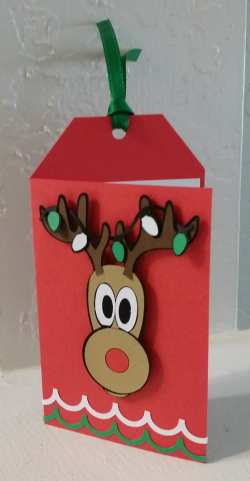
I love Popup Card Studio SOOOO much that after signing up for a Christmas-themed gift tag swap, I immediately decided to design a gift tag that would also be a popup card:

I wanted a whimsical design and easily located a free Rudolph image using Google and traced it in MTC. I employed my usual approach of starting the design in MTC where it always seems easier to visualize the final product. I used a free font called Christmas Light Indoor for the To and From elements. Then I copied and pasted those into Popup Card Studio and created the popup design for the inside of the tag. I exported this popup as an SVG file to reopen in MTC. It’s important to note that if you are a KNK Force owner, you need to do this so that the fold lines can be broken and rejoined before the file is exported and opened in C3 for cutting to the Force.
I used both the Maxx Air and the Force to cut all parts. Because the Force has easy and accurate PNC, I used it for the colored To/From pieces and for the Merry Christmas greeting. I also used it for the popup insert because the Force has dual heads, thus capable of scoring and cutting the popup all in one step. Given that I was making 16 of these tags, I needed efficiency!
While the Force was doing its cuts, the Maxx Air handled the cutting of 16 sets of red, white, green, light brown, dark brown, and black pieces used in these tags. Now, if only KNK USA would come up with a machine to do all of that tedious gluing it took to create Rudolph’s head! LOL When I started organizing the file to share with everyone, it occurred to me that some crafters might like Rudolph to also be a single PNC element so that the tedious gluing of small pieces would be eliminated. No problem! I added several variations to the file that I’m sharing here.
The file contains an MTC format file, a SCAL format file, and individual SVG files for those cutting with the Force or importing into a different program. Also, for those using other design software, the PNC elements have been included as individual PNG files. To verify sizing, the tag should be 4.75″ in height.
If you’re into popup cards, think about buying Popup Card Studio. It takes a little practice maneuvering in the software but there are lots of free videos to help you learn it:
PCS Demo
Intro to PCS
Two Line Card in PCS
and dozens of other PCS videos here: Susan Bluerobot
If you have any questions, please post!
by Sandy McCauley | Jan 26, 2015 | Boolean Join, Eraser, Free Files, Free Videos, Hearts - Designing, Jigsaw Puzzle Generator, MTC, Shadow

Long time, no post! Hopefully today’s topic on designing a custom shaped jigsaw puzzle will help make up for my absence!
There are a number of different methods for combining a puzzle from MTC’s Puzzle Generator with any shape to create a custom-shaped puzzle like the one shown above. Other MTC owners have posted their methods, including Bryan Williams in one of MTC’s Tuesday night webinars. His method and mine are virtually identical other than how we edit the puzzle to remove extra lines. Anyhow, here’s a link to the new video I made:
Designing a Heart Shaped Puzzle
This is a great exercise in learning two of MTC’s most valuable functions: Boolean Join and the Inverse Eraser.
Then, if you haven’t used the Puzzle Generator, then you might also need this video:
MTC Puzzle Generator
Finally, the heart I created is also available in case it’s something you can use in one of your upcoming Valentine’s projects:
Free Puzzle Heart Files:
KNK Format
MTC Format
PDF Format
Finally, if you do not yet own MTC, it can be purchased for only $57.99 at this link. Let me know if you have any questions!
by Sandy McCauley | Oct 29, 2013 | Free Videos, MTC

Two of the common questions I get from new owners of Make The Cut are, “Where do I start?” and “Which videos should I watch?” So, today’s post is directed at those learning MTC and needing some guidance.
First of all, always make sure you’re using the latest version so that the screenshots and instructions in the user manual match what you see in the software. To check which version you’re using, watch this video, as it will also show you where to find the KNK plugin version as well. To update to the latest versions, you can use the link I have here or Make The Cut’s download page.
Next, the MTC user manuals are Chapters 3 – 8 in any KNK with MTC user manuals available here at my site. The Zing with MTC user manual is also accessible from the File>Help page from within MTC and that will probably be a quicker access unless you bookmark one of the user manual links here. Note that the various versions I list (Interactive, PDF, and Downloadable EXE) are always the same version and allow you to click on sections from the table of contents, search on any particular word or words, and directly go to videos by clicking on green Video icons.
The KNK USA vimeo channel has about 90 or so MTC videos I’ve made so far. These are mostly the ones I’ve linked within the user manual, plus a few extras that were specific to questions asked by my customers and might be of interest to others. But there’s no organization available at Vimeo, so anyone new to MTC wouldn’t really know where to start. The same is mostly true in the user manual. So, for those who want a viewing order for basic MTC videos, here’s my recommendation, although this isn’t the easiest thing to provide since users’ needs and interests vary. But certainly the first nine or ten videos make sense for all owners of MTC to understand.
Importing from Basic Shapes
Resizing Shapes
Rotating Shapes
Copying and Duplicating Shapes
Layer Bar: Part 1
Layer Bar: Part 2
Layer Bar: Part 3
Virtual Mat Settings
Entering Text and Welding Letters
Importing from the MTC Gallery
Opening Font Files
Using Dingbat Fonts
Shadow Function
Creating a Custom Mat
Dashed Lines
Demo of Pixel Tracing Features
Pixel Trace 1
Tracing for a Print and Cut
Converting KNK to MTC Part 1
Converting KNK to MTC Part 2
As always, I’m here to help! So, feel free to ask questions and I’ll respond. For those who enjoy user forums and Yahoo groups, then head on over to either or both of these and sign up! These are also excellent places to ask questions and pick up tips, free files, and new ideas!
Make The Cut Yahoo Group
Make The Cut Forum
by Sandy McCauley | Aug 28, 2013 | Free Files, Free Videos, Make The Cut, Measure Tools, Metric, MTC

Make The Cut wasn’t originally targeted for anyone living outside the United States. It was a basic vector program written by a brilliant guy for his wife who owned a Cricut and happened to scrapbook! Fast forward a few years and now Make The Cut is owned and used by thousands of customers around the world who are still attracted to its simplicity but also hooked on its functionality. Not only does it have easy-to-learn auto-tracing functions which rival those of far more expensive programs, but some of its other features are just plain COOL to use! I’ve covered a lot of these in other prior posts here. Just look up MTC in the Category feature on the left column here.
The main problem for the non-US owners is the inability to easily work in metric. The main display for shape dimensions and location remain in inches. It’s my understanding that adding a metric version would require a huge re-write and that’s not on the table right now. So, last spring a member of the MTC forum (Lesly Holliday) came out with a handy template file that had ruler shapes and a grid drawn to metric dimensions. For the past few months, I thought about what if anything might still pose a problem when using this file. I came up with some modifications and decided to start from scratch by designing longer rulers to reach the full 12″ boundaries of the KNK Zing mat and also put the rulers and the grid on their own page for several reasons which I’ve covered in detail in a video linked below.
Before we get to the metric mat template and video, note that there are several existing metric workarounds already present in MTC:
(1) The dimensions of a shape can be entered in either cm or mm in the W: and H: fields by simply adding the units after the values. For example to re-size a shape to be 15 mm wide, enter the value like this:

(2) While the display will convert the sizing to inches, the dimension can be verified by using the Measure tool under the Node Edit menu. I’ve previously made a video on using this feature after being contacted by someone cutting rhinestone templates which are, traditionally, designed in metric:
Determining shape dimensions in metric units
(3) Newer features in MTC have metric options already. For example, if you are shadowing a shape, doing nested duplication, drawing with the Fat Path opton, or using the Erase Tool. All of these will either require values to be entered in mm or give you the option of in, cm, or mm.
Now, back to the metric template, download the file from here and open it in Make The Cut. You’ll see that metric rulers and a metric grid have been set up on their own page and the file is ready to use. You might want to immediately save under a new name so that you can preserve the original. Now you’re ready to watch the video where I explain how best to use this file:
Using the Metric Mat Template File
Be sure to note how you can switch between Portrait and Landscape, why you might want to set up a Tiny Mat, and why it’s important to leave the metric rulers and grid on their own separate page. Most importantly, please provide suggestions using the Comments section below for any enhancements which might make this metric template more usable for your needs! 🙂
by Sandy McCauley | Dec 4, 2012 | Editing, Erase, Eraser, Free Videos, Make The Cut, MTC

Reason #20: Erase Tool
Reason #21: Inverse Erase Tool
These are two more reasons to check out Make The Cut software! The ability to simply drag the mouse to erase parts of a vector image and, equally handy, to add to a vector image provide easy modifications to your cutting files. The eraser size can be anything from 0.03 mm thick (we’re talking eyelash on a ladybug thin!) to, basically, unlimited.
And not only can the Erase tool be used to erase or add to images, but the 0.03 mm provides a great tool for slicing and dicing shapes. While there is a Knife tool available for this purpose, I personally prefer using the Erase tool in most cases, because it results in a closed shape, rather than leaving it open. Here’s the difference:

The Knife tool always does a straight line cut. The Erase function has the option of a freehand movement or you can hold the Ctrl key while using and achieve a straight line erase, as show in the right heart above. Of course there are situations where the open path resulting from the Knife tool could be exactly what is needed. The nice thing is that you have a choice!
As always, videos are the best way to show you how these cool tools work! So, have a look at how the Erase tool was put to use in several different ways in these two demonstrations:
Erase and Inverse Erase
Using the Inverse Eraser to Edit a PNC Trace
If you have any questions, feel free to post a comment here. As always, MTC is available for sale in my online store here. Also, be sure to check out other free MTC videos available at this link, as well as the downloadable user manuals for MTC, which have been recently updated!


